How to Restore Old VHS and Camcorder Video: Capture First
· ClapClip Team · 7 min read
Most of a VHS restoration happens before the enhancer opens. Capture the tape at its native size, deinterlace it, and only then let the AI remove grain, sharpen and raise the resolution. Get the capture wrong and no amount of processing will recover it; get it right and a 480-line home video can come out clean at 1080p.
Key takeaways
- Capture at 720 × 480 for NTSC or 720 × 576 for PAL, into a high-bitrate or lossless file. Deinterlace before enhancement, not after.
- Video belongs in the Windows app. The browser takes JPG, PNG or WebP stills up to 6 MB, 8 megapixels and 8192 px per side; it rejects a clip.
- Denoise before you sharpen. Sharpening a tape that still has visible grain makes the grain crisp.
- Target 1080p from a 480-line tape. 4K asks for 4.5× the vertical detail, and the model has to invent all of it.
Is your tape worth restoring?
Good candidates:
- Family tapes that have been stored indoors and still play without dropouts.
- Hi8, Video8 and MiniDV footage that was captured or transferred to a digital file.
- Old camcorder files that are grainy, soft and faded but otherwise intact.
Poor candidates:
- Tapes with mould, creasing or physical damage. The damage shows up as dropouts that software cannot reconstruct, and playing a damaged tape can ruin it further.
- Anything you only have as a DVD you already burned from the tape. That copy is compressed; go back to the original tape if it still exists.
- Footage where the faces are unrecognizable. There is no signal left to enhance, only noise to smooth.
Rule: if the tape has mould, creasing or visible dropouts, stop and deal with the physical media first; if the picture is merely soft and grainy, restoration is worth a test.
What can you fix — and what can't you?
| What you see | Usual cause | What actually helps |
|---|---|---|
| Grain and crawling noise | Tape wear, low light during recording | Denoising, before sharpening |
| Faded, drifting color | Aging tape stock, cheap camera | Color correction and enhancement |
| Everything soft | The format's own resolution | Upscaling after cleaning |
| Tearing along the bottom | Head-switching noise | Crop a few pixels off the bottom in your capture tool |
| Streaks and dropouts | Physical tape damage | Not recoverable — cut around them |
| Comb edges on movement | Interlaced source | Deinterlace before enhancing |
The distinction matters because denoising and sharpening pull in opposite directions. Clean the grain first, then sharpen, and never sharpen a tape that still has visible noise, because you will make the noise crisp.
Rule: if the fault is physical damage, cut around it; if it is noise, denoise before sharpening. No setting fixes both at once.
Which tool should handle the tape?
This is a video job, so it belongs in the Windows app. The browser tool on enhance.place takes still images only, and it rejects a video file with "Choose a valid JPG, PNG or WebP image." Even a single frame pulled from the tape is better handled in the app, where you can process the whole clip with one setting.
In ClapClip for Windows:
- Input: MP4, MOV, AVI, MKV, WEBM. Capture your tape to one of these at high quality.
- Modes: General for most home video, Portrait when the tape is mostly people facing the camera.
- Output: a video file at the resolution you choose, with the audio track kept.
- Batch: several tapes or several chapters can be queued with one set of settings.
A 720 × 480 NTSC capture is 345,600 pixels per frame; 1080p is 2,073,600, exactly six times as many. That is a reasonable ask for a clean tape and a large one for a noisy tape, which is why the cleaning pass comes first.
Rule: if the source is 720 × 480, target 1080p; if you target 4K, the model has to invent 4.5× the vertical detail and the result needs much more scrutiny.
What do the common failures mean?
- "Choose a valid JPG, PNG or WebP image." A video file was dropped on the browser tool. It is a still-image tool; use the app.
- "Enhancement failed." The job did not finish within its retries. Splitting a two-hour capture into chapters and running them as a batch is the reliable fix.
- Output looks worse than the tape. Almost always noise that was sharpened rather than removed. Re-run with denoising ahead of sharpening and a gentler setting, on a dark scene where tape noise is heaviest.
- The result is missing the bottom edge. Head-switching noise was cropped in capture, not in enhancement. That is expected and preferable to keeping the tearing.
Rule: if the result looks worse than the tape, suspect sharpened noise first and check a dark scene before you change anything else.
How do you restore a tape step by step?
- Clean the player heads and wind the tape once end to end before capturing. It reduces dropouts.
- Capture at native resolution — 720 × 480 for NTSC, 720 × 576 for PAL — into a high-bitrate or lossless file. Do not let the capture software upscale, crop or deinterlace for you.
- Keep the capture untouched and work on a copy.
- Deinterlace. The enhancer processes full frames, so comb edges baked into the file are what it will try to preserve.
- Open the file and use the restore old video workflow. Denoise first, judge it on a dark scene, then add sharpening gently.
- Target 1080p, not 4K. From 480 lines, 4K asks the model to invent 4.5× the vertical detail. 1080p is where most tapes look their best.
- Compare on faces. People are the subject of family video, and faces show over-processing before anything else.
- Export a high-quality file and keep three copies: the raw capture, the restored master, and a smaller version for sharing.
Rule: if the first chapter still shows comb edges after enhancement, go back to the deinterlace step; sharpening an interlaced source preserves the combs.
How do you keep the character of the original?
A restored tape should look like a clean copy of the original, not like it was shot last week. Leave a little grain; removing all of it turns skin plastic. Do not push color past what the decade actually looked like. Keep the 4:3 frame rather than cropping to 16:9, which cuts heads off at the edges.
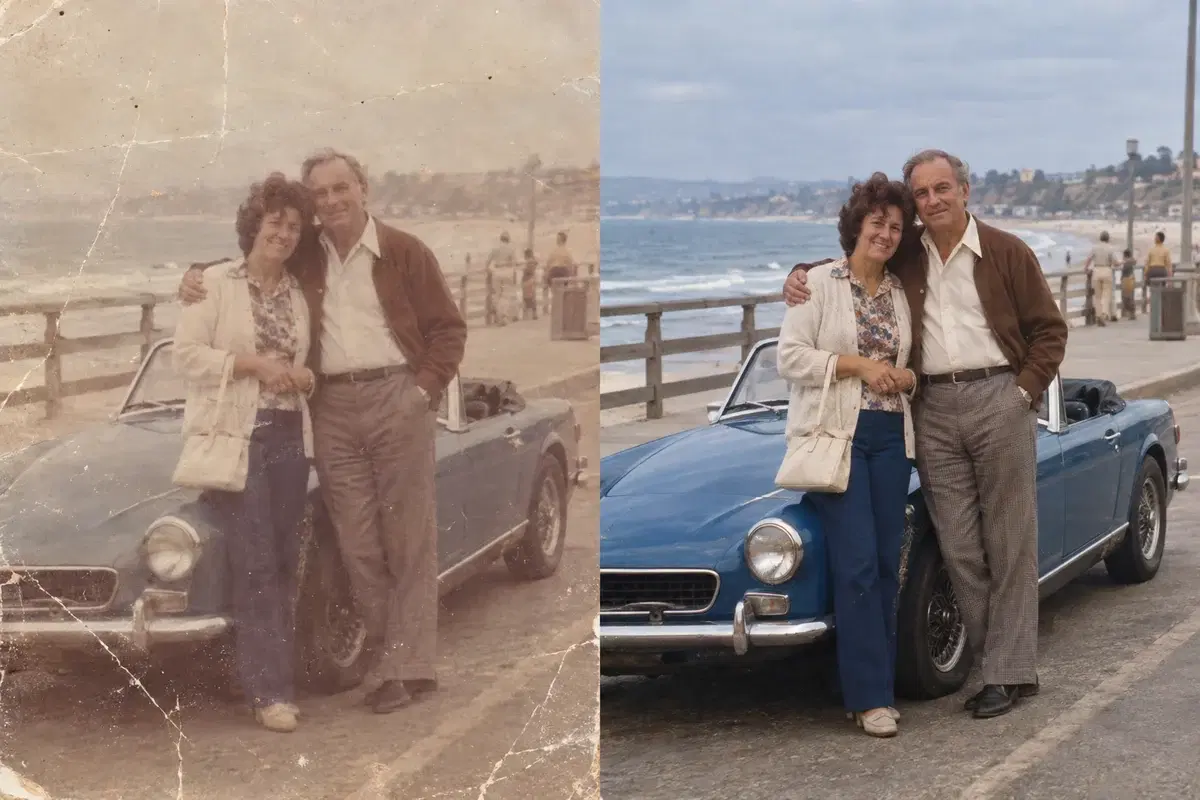
If you only want a general cleanup — less grain, a bit more bite — the video enhancer does denoising and sharpening in one pass without the restoration framing. For photographs from the same era, the approach is different and lives on the old photo restoration page.
Rule: if the result looks like a modern video, you have removed too much grain or pushed the color too far; step back until it still looks like the year it was shot.
What's the bottom line?
Restoration is a series of small decisions, and each one is a trade: noise removed against texture lost, sharpening against halos, resolution gained against invented detail. The workflow above resolves them in the order that fails least often — capture, deinterlace, denoise, sharpen, upscale — but the final check is always the same: watch the result at normal speed and ask whether it still looks like the people in it. Download ClapClip for Windows and start with the worst five minutes of the tape; if that works, the rest of the box will too.