Enhance vs Topaz: Compare the Workflow, Not a Demo Frame
· ClapClip Team · 8 min read
Both products process your media on your own machine, so "local" is not the reason to choose between them. The real difference is scope: Enhance pairs a browser tool for single photos with one Windows app that handles photos and video in a single queue, while Topaz ships separate applications per job. This page is written by the Enhance team, we have not run a matched head-to-head test against Topaz, and nothing below claims a speed or quality winner.
Key takeaways
- Enhance is a browser tool for one photo plus one Windows app for photos and video. Topaz is a set of separate applications chosen per task.
- The browser takes one JPG, PNG or WebP up to 6 MB, 8 megapixels and 8192 px, at 2× or 4×, and returns a PNG. The app is the local path.
- Enhance's hardware guidance is 4 GB of VRAM for 1080p and 8 GB or more for 4K. Topaz publishes its own per-app requirements, which can differ by model.
- No speed or quality winner is claimed here. A single demo frame proves nothing about a ten-minute clip, so judge with your own files.
Where do the two products actually differ?
| What you need | Enhance / ClapClip | Topaz desktop apps |
|---|---|---|
| Where processing happens | Your PC in the Windows app; a GPU worker in the browser tool | Your PC, with optional cloud rendering on some features |
| Photos and video | One workspace and one export queue | Photo or Gigapixel for stills, Video for footage |
| Output formats | PNG for images, MP4 for video | Depends on the app and the export settings |
| Batch | Multiple originals, one settings pass, one output folder | Photo and Gigapixel both support image batches |
| How you start | A browser tab, then the Windows app for local work | A licensed desktop app chosen per task |
| Hardware baseline | Guidance: 4 GB of VRAM for 1080p, 8 GB or more for 4K | Per-app minimums published by Topaz |
Topaz publishes system requirements for Photo, Gigapixel and Video, and individual models can need more than the baseline. Enhance's 4 GB and 8 GB figures are practical guidance rather than a certified minimum, and the GPU page explains the trade-offs.
Rule: if local processing is the requirement, both products qualify; compare the workflow and the output, not the label.
When is Enhance the better fit?
- You want one queue for photos and clips. In the Windows app you select originals of both kinds, freeze one set of settings and pick an output folder once.
- You want to test before installing. The browser tool takes one JPG, PNG or WebP at 2× or 4× and returns a PNG, with no account.
- You work on a laptop without a flagship GPU. The app runs on DirectML, so NVIDIA, AMD and Intel graphics are all supported, and the GPU page explains the trade-offs.
- You want small, bounded online jobs. The browser path caps input at 8 megapixels and output at 32 megapixels, which bounds a single job.
Rule: if you want to test before you install, or you want one queue for stills and clips, Enhance is the simpler path.
When might Topaz be the better fit?
- Your workflow is built around RAW files and editor plugins. That is Topaz Photo's territory; Enhance does not integrate with a RAW pipeline.
- You need tools beyond enhancement: frame interpolation, stabilization or SDR-to-HDR conversion. Those belong to Topaz Video, not to this enhancement path.
- You want a documented minimum specification and a commercial support arrangement. Topaz publishes system requirements for each app; Enhance currently publishes guidance rather than a minimum.
- You need a particular restoration model that only Topaz ships. Model catalogs differ, and model names are a better reason to pick a product than a single demo frame.
Rule: if your work needs RAW, finishing tools or a documented minimum, evaluate the matching Topaz application on your own source rather than on a marketing frame.
Why is the browser not the local app?
This distinction causes more confusion than any product comparison. The two paths share a name and little else.
- The browser tool uploads your image to a GPU worker and returns a PNG. It handles stills only: JPG, PNG or WebP, one at a time, 2× or 4×.
- The Windows app processes locally. It takes JPG, PNG, WebP and TIFF images, and MP4, MOV, AVI, MKV and WEBM video, and writes a PNG or a video file.
So "Enhance is local" is true of the app and false of the website. If keeping the file on your machine is the requirement, the offline enhancer is the page that matters, not the home page.
Rule: if the file must not leave your machine, use the app; if you are testing one still, the browser is the simpler start.
What does an enhanced frame actually look like?
The pair below is a source crop and the same crop after a native 2× pass. Look at the eyebrows, the ear and the right eye, then decide what the model added.
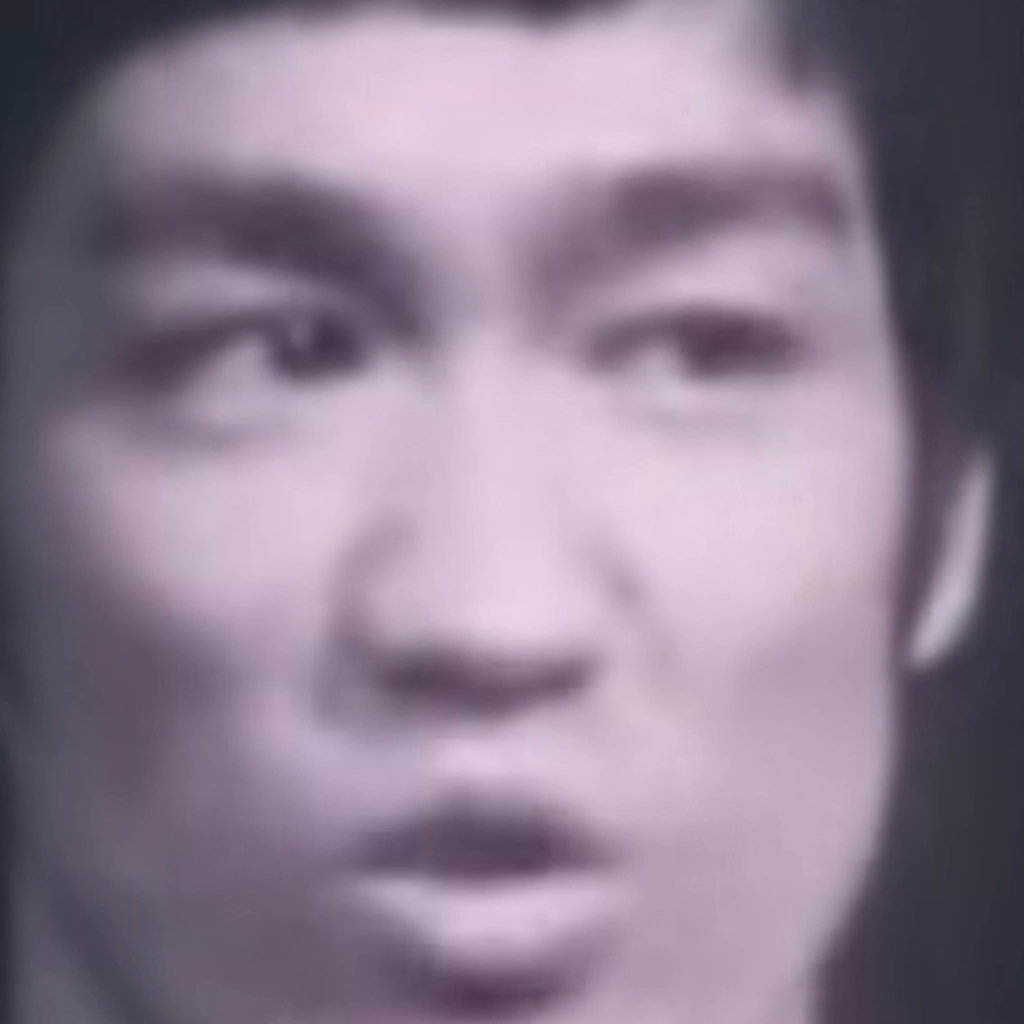
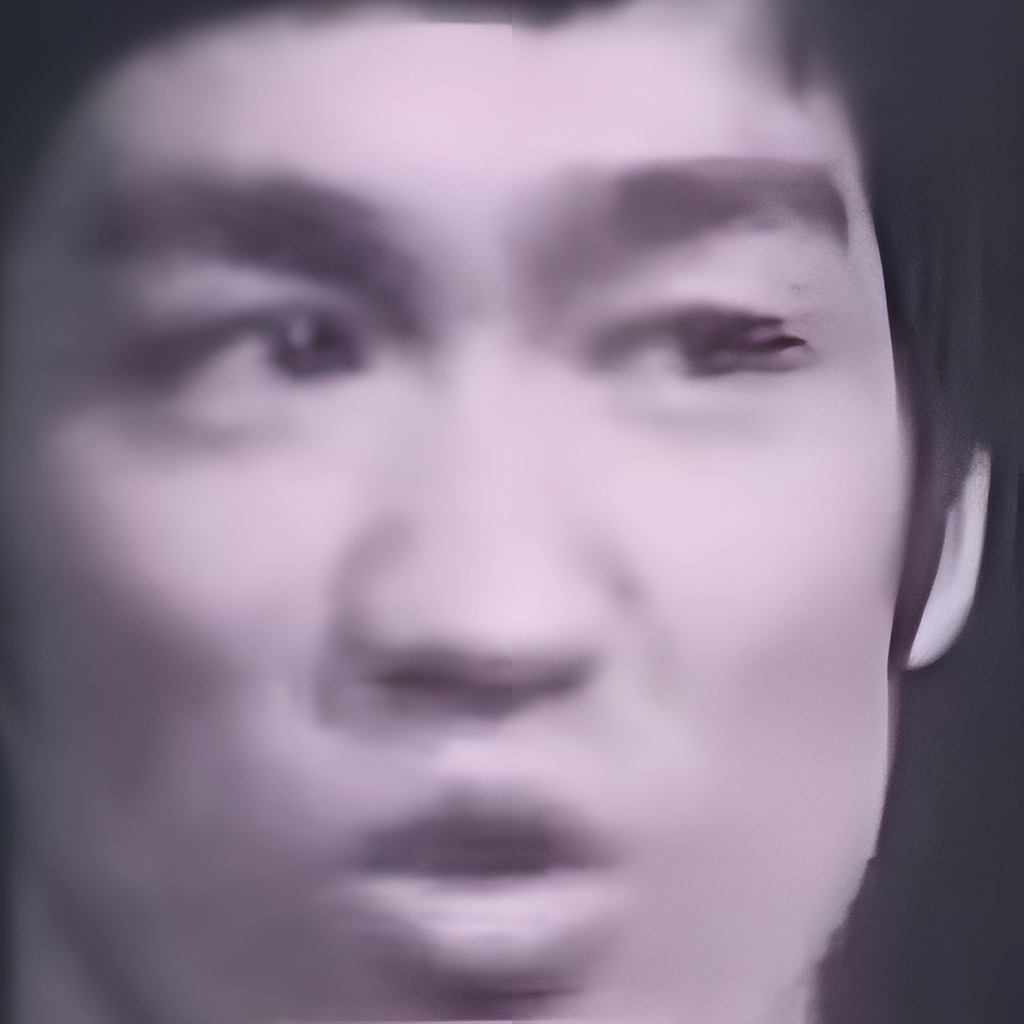
Look at the eyebrows and the ear, then at the right eye: clearer contours come with visible reconstruction. This is a source-versus-Enhance pair from the project's comparison folder, not a Topaz output comparison, and it is the reason not to pick a tool on a single demo frame, because a sharper-looking result can still have changed a detail you wanted preserved.
Rule: if a comparison changes an eye, a letter or a texture you care about, reject it even when the overall frame looks better; a sharpened guess is still a guess.
How do you run a batch without repeating decisions?
Batching is mostly about not repeating decisions. In ClapClip's enhancement workspace you select multiple originals, set the enhancement once, choose a destination once, and let the queue run. Duplicate paths are removed and output names stay distinct even when two source files share a name.
A sensible first batch:
- Preview one representative file. Inspect faces, fine edges and motion.
- Start at 2×. Raise it only where the comparison supports it.
- Keep similar sources together — animation and low-light footage want different settings.
- Select the originals, enable batch export, and write to a separate output folder.
- Keep the originals. The export is a new interpretation, not a replacement master.
Batching does not make each job faster; it removes the setup time between them. Duration, resolution, model choice and encoding still set the clock.
Topaz batches images too: Photo applies automatic or shared manual adjustments, and Gigapixel has its own workflow. The difference is a shared photo-and-video queue, not exclusive access to batching.
Rule: if the files differ in source type or lighting, split the batch; one settings pass across mixed sources will over-sharpen one group and under-serve the other.
How do you decide with your own files?
- Take one representative photo and one representative clip of your own.
- Run the photo through the browser tool at 2×, and look at faces, text and texture at the same size.
- Run the clip's first minute through the Windows app, previewing before the full export.
- Compare the outputs with your originals, not with each other's marketing pages.
- Choose the tool whose output you would keep, then check the hardware story fits your machine.
If the answer is the local app, read the batch workflow before pointing it at a folder, and why the online tool is fast if your work is mostly single photos. If you need RAW support or finishing tools, evaluate the corresponding Topaz application on the same source, because that is a fair test for both sides.
Rule: if the output would not survive comparison with your original, the workflow does not matter; pick the tool that produces files you would actually keep.
What's the bottom line?
Enhance's argument is a shorter path from "I have these files" to "I have enhanced versions of these files" on a normal Windows machine: one app, one queue, formats you already use, no upload. Topaz's argument is depth and specificity: separate apps tuned for specific tasks, published system requirements, and finishing tools that go beyond enhancement. Neither argument is about speed, so test both on one representative photo and one representative clip, then choose the output you would keep.