Why Enhance.place Is Fast: The Limits That Set the Pace
· ClapClip Team · 8 min read
Most of the wait is the size of the job, not the browser. Enhance.place uploads one image, hands it to a GPU worker, polls that worker every 1.5 seconds and returns a PNG, so your device never loads a model. What makes a job predictable is that the work is bounded: the input has a pixel ceiling, the output has a pixel ceiling, and the scale is either 2× or 4×.
Key takeaways
- The browser takes one JPG, PNG or WebP up to 6 MB, 8 megapixels and 8192 px per side. It returns a PNG capped at 32 megapixels, at 2× or 4× only.
- The page polls the worker every 1.5 seconds, and the worker holds a 240-second lease with up to 3 attempts. A slow job is retried or resumed, not silently lost.
- 4× needs a source of 2 megapixels or less. A 1920 × 1080 frame is 2,073,600 pixels, already over the output line.
- Enhancement is free, with no account and no usage quota. The 4, 10 and 30 requests-per-minute limits are short-window admission checks.
What actually runs, step by step?
- Session. The page asks the service for its limits and available models. It receives the file-size and pixel caps, and the Standard, Animation and Portrait model list — the Photo, Artwork and Portrait choices in the interface.
- Upload. One image, JPG, PNG or WebP, is encoded into the request. The browser checks the type, the file size and the pixel dimensions before sending anything.
- Queue. The job waits for a free GPU. The interface says "Waiting for a GPU" while it does.
- Processing. "Reconstructing detail" is the only stage that does the model work, and it happens on the worker, not on your machine.
- Polling. Status is checked every 1.5 seconds. The worker holds a 240-second lease and gets up to 3 attempts, so a job that times out can be retried rather than declared failed at once.
- Download. The result is a PNG with a signed link. The page keeps the image you uploaded, so changing a setting does not throw away a result you already have.
The AI inference does not run on your CPU or GPU. Your device still decodes the image and displays the comparison, while network speed and the server queue affect the total wait.
If a job is slow, check upload progress and queue status first. A large preview or slow download can also add time after the model has finished.
What are the caps that bound every job?
| Limit | Value |
|---|---|
| Maximum file size | 6 MB |
| Maximum input pixels | 8 megapixels |
| Maximum input side | 8192 px |
| Maximum output pixels | 32 megapixels |
| Scale | 2× or 4×, nothing else |
| Output | PNG |
| Short-window request limits | 4 per minute per user, 10 per minute per device, 30 per minute per session |
The output cap is the one that shapes behavior. Because 4× means sixteen times the pixels, 32 megapixels of output allows 4× only up to a 2-megapixel source. A 12-megapixel phone photo is refused by the 8-megapixel input cap before scaling even starts; at 8 megapixels you get 2×, and 4× needs 2 megapixels or less. That is a deliberate ceiling on how long a single job can run, and it gives every job a predictable upper bound.
The per-minute figures are admission limits, not a usage allowance. They stop a script from hammering the service, and they clear when the minute rolls over. The tool needs no account and has no usage limit attached to it.
Rule: if a request is rejected for rate, wait for the next minute; if it is rejected for pixels, choose 2× or a smaller source. The two have different fixes.
Why does 4× hit the output cap first?
Scaling multiplies both axes, so 4× is sixteen times the pixels, not four. The output cap therefore turns into a simple division: 32,000,000 ÷ 16 = 2,000,000.
That makes 2 megapixels the real ceiling for 4×. A 1920 × 1080 frame is 2,073,600 pixels, so it misses by a small margin; most phone photos miss by a large one. At 8 megapixels, 2× produces exactly 32 megapixels, which is why 2× is the practical browser default.
Rule: if the source is 2 megapixels or less, 4× fits; if it is larger, 2× is the only scale the output cap allows.
What do the saved comparison images show?
These are still-frame comparisons from the project's own experiment folder, kept as full-size PNGs. They are evidence about reconstruction quality, not about speed — look at what the model invented, not at how long anything took.
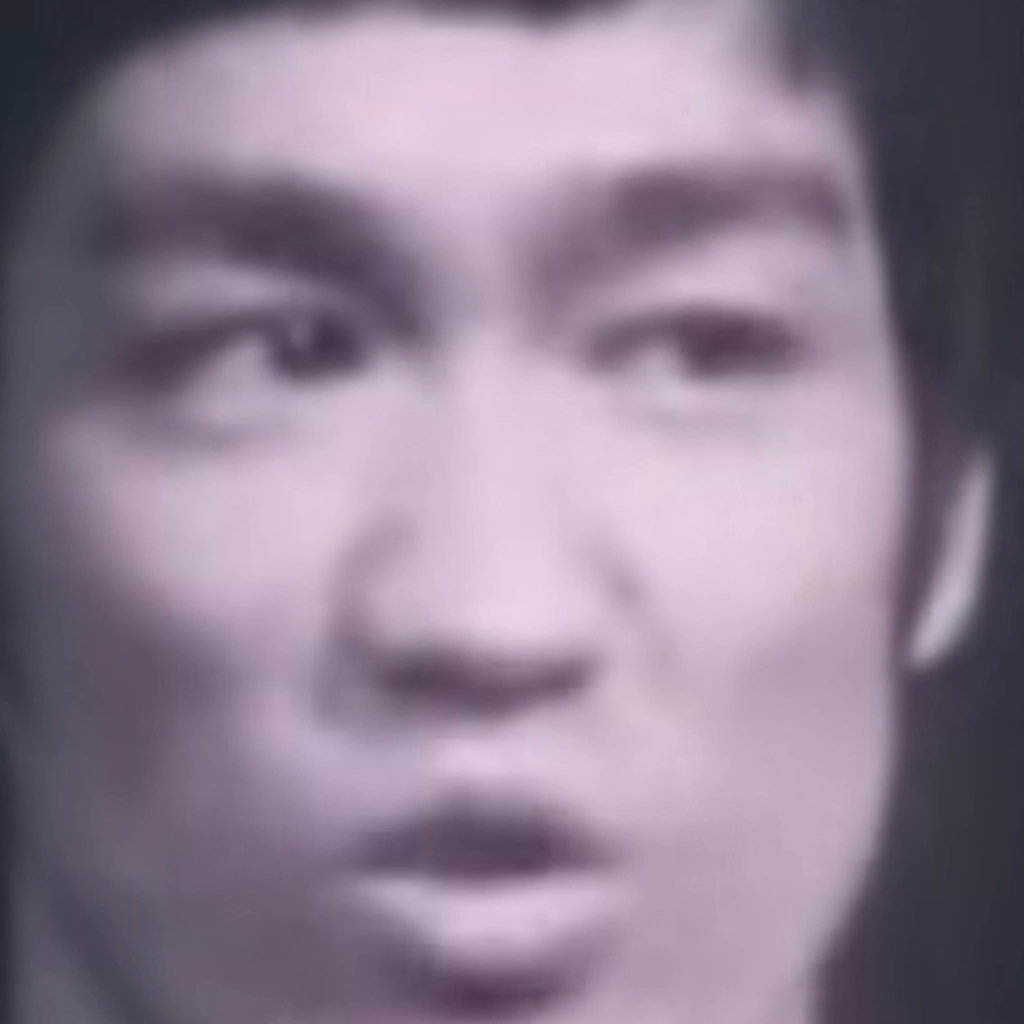
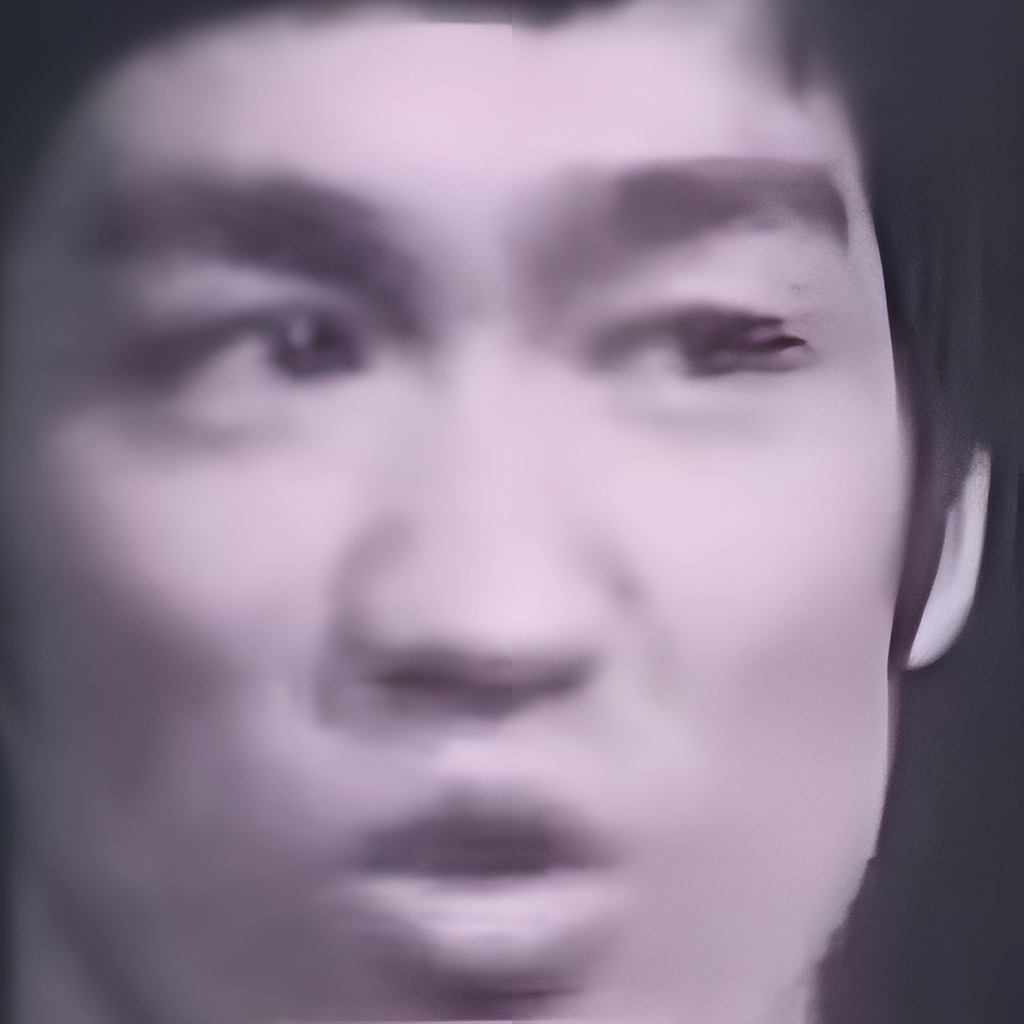
Look at the eyebrows and the ear, then at the right eye. Sharper contours and invented structure arrive together, and that is the honest reading of every enhancement result: a prediction that is usually good and sometimes wrong.
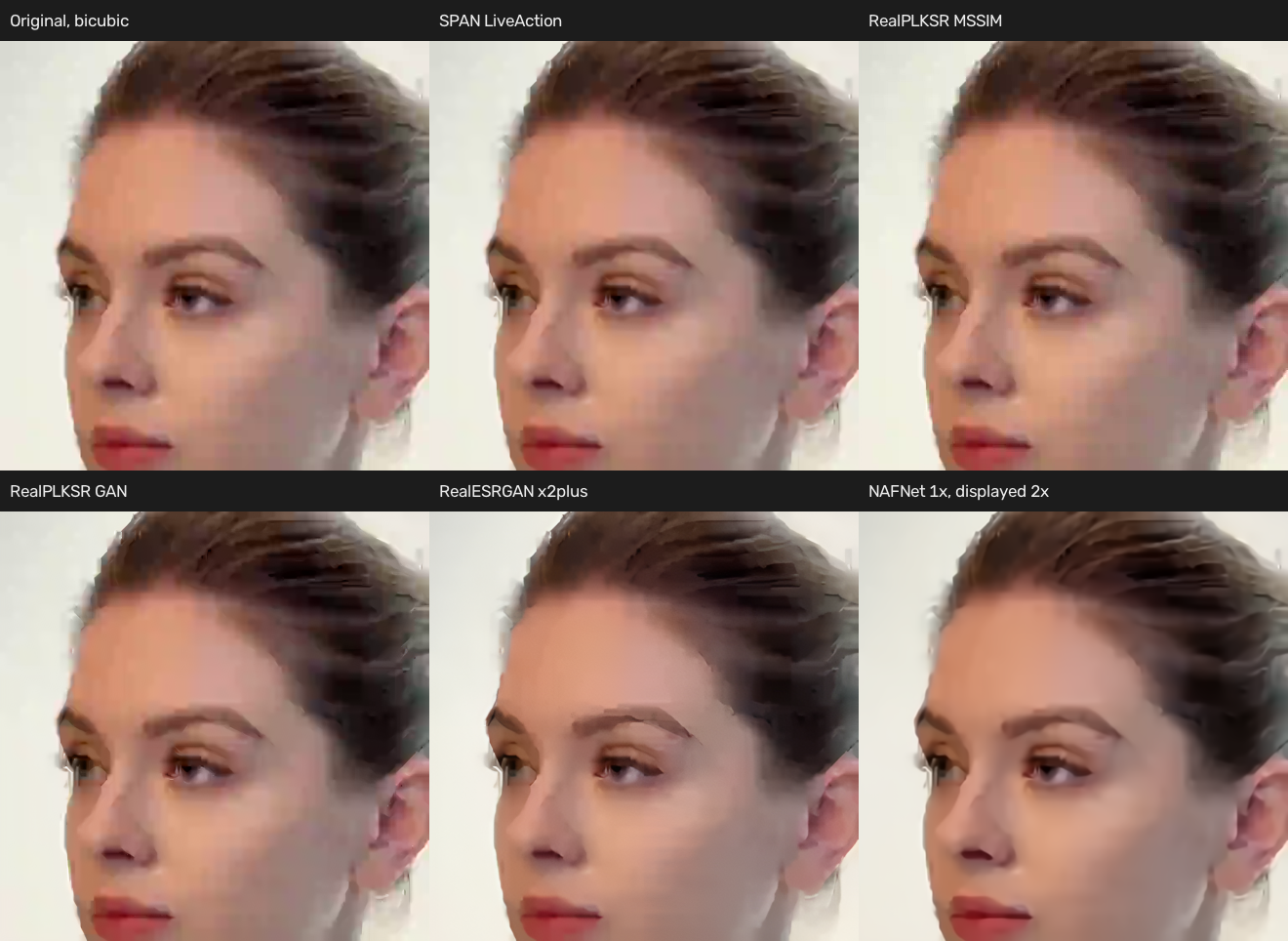
The compressed frame is the more useful test, because compression is what most real uploads contain. Some paths leave the blocking in place and stay close to the original; others redraw the edges and risk a smoothed face. Neither is universally right, which is why the tool offers a choice of models and a comparison slider rather than one automatic answer.


On a clean frame the difference is subtler, and that is the point worth taking away: enhancement pays off most on damaged input and least on a good photo that is already sharp. That is also why damaged input is the better test of any model.
Rule: if a result looks sharper only because it is larger, compare at the same displayed size; if it looks sharper at 100% but changes an eye or a letter, reject it.
Which failures are not speed problems?
- "The online queue is full. Try again shortly." Every GPU worker is busy. The job was never created, so nothing is lost.
- "This image is too large for the selected scale." The output cap. Choose 2×.
- "This image exceeds the online size limit." Input over 8 megapixels or 8192 px per side.
- "The file is too large. Choose an image under 6 MB." Encoding size, not dimensions.
- "Connection interrupted. Continue this task." The page lost the status stream. Continuing looks up the original job instead of submitting a second one.
- "Enhancement failed." The worker did not finish after its retries, and the job is reported as failed rather than hanging.
None of these are speed problems to solve on your end. Each names the limit that was hit, and the two size limits are the only ones you can act on before uploading.
The AI Enhancer cluster documents 20 specific cases: video and image enhancement, video and image upscaling, blurry video and photos, old video and photo restoration, noise removal, Windows, offline use, real-time, batch, GPU, anime, portrait, YouTube, webcam, screen recording and drone footage. If your question is "will this work for my material", the scenario page is usually more useful than a speed figure. The Enhance vs Topaz comparison covers the local alternative in more detail.
Rule: if a failure names a limit, fix the input or the scale; if it names the connection, resume the same job rather than submitting a new one.
What's the bottom line?
A bounded job is fast and predictable, and it is also limited: you cannot hand the browser a scan far over 8 megapixels at all, however long you are willing to wait. When the caps are the problem rather than the queue, the offline Windows enhancer is the honest answer, because it uses your own GPU and turns the limits into memory and time instead of pixels. For photos, start with Standard image enhancement at 2× and use 4× only when the source is small enough, then upload a picture on enhance.place and watch the comparison before you download.
Choosing between browser and desktop processing? The Upscayl vs Enhance comparison covers operating systems, image batches, video workflows and the archived model timings, with a short test you can repeat on your own files.