Upscayl vs Enhance: Online Photos or Local Batch Processing?
· ClapClip Team · 7 min read
Choose Upscayl Desktop for a free, open-source image upscaler on Windows, macOS or Linux. Choose Enhance to try a photo in your browser, or to enhance photos and videos together in a Windows batch workflow. Both desktop options process locally and support batches; those features alone do not separate them.
This comparison is written by the team behind Enhance.place and the ClapClip AI Windows app. We checked Upscayl's official download page and repository on October 31, 2026. The sample images and model timings below come from our own archived experiment, not a head-to-head test of the two products. Upscayl Cloud is a separate service and is outside this desktop comparison.
On this page
- Compare the three processing paths
- Choose by the files you need to process
- Check GPU compatibility and speed
- Inspect a real enhancement sample
- Test the tools with your own files
- Frequently asked questions
Upscayl vs Enhance at a glance
| Requirement | Upscayl Desktop | Enhance online | ClapClip AI for Windows |
|---|---|---|---|
| Starting point | Install the desktop app | Open a browser and upload one image | Install the Windows app |
| Operating system | Windows, macOS, Linux | A supported browser | Windows 10 or 11 |
| Processing location | Your computer | Server-side GPU worker | Your computer |
| Main workflow | Image upscaling | One photo at 2× or 4× | Photo and video enhancement |
| Batch processing | Image batches | One image per task | Photo and video export queue |
| GPU setup | Vulkan-compatible GPU | No local AI model installation | Compatible GPU through DirectML |
| Availability | Free, open-source desktop download | Free, no login or usage credits | Desktop download; check current license options |
Upscayl's official desktop download page documents its operating systems, local processing and custom-model support. Its repository documents batch behavior and the Vulkan GPU requirement. Store distribution may have different pricing from the free download.
Which tool fits your files?
One photo, with no installation
Start with the online image enhancer. Upload a JPG, PNG or WebP, choose Photo, Artwork or Portrait, and compare the result before downloading a PNG. No account or usage credits are required.
The image is uploaded for processing. Use a local desktop app when the original must stay on your machine.
The online defaults are 6 MB per file, 8 megapixels of input, 8192 pixels per side and 32 megapixels of output. A 4× pass multiplies the pixel count by 16, so its source must be no larger than 2 megapixels. For example, a 1920 × 1080 image fits at 2×, but exceeds the output cap at 4×.
A folder of images on macOS or Linux
Upscayl Desktop is the relevant option here: ClapClip's local application is Windows-only. If an open-source desktop tool or custom image models are priorities, those are also reasons to evaluate Upscayl.
Photos and video on a Windows PC
Use ClapClip AI when you want the same enhancement workspace for still images and clips. Preview a representative file, set your export options and let the queue process the selected files. The batch enhancement guide covers this workflow.
Batching saves repeated setup. The rendering time still depends on each file's dimensions, duration and model settings.
GPU support and speed: what can you actually compare?
Upscayl Desktop uses a Vulkan GPU path; ClapClip AI uses DirectML on Windows. A GPU working in one application does not establish its performance in the other. Check the installed driver, available GPU memory and the actual model before committing a large batch. Our GPU guide explains the Windows path.
Enhance online runs the model on a server, so your device does not need to load the AI model. Upload speed, queue load, image decoding and downloading still contribute to the time you wait.
Our archived local experiment shows why the model matters:
| Model export | Median GPU inference time | Input → output |
|---|---|---|
| SPAN LiveAction 2× | 59.2 ms | 512 × 512 → 1024 × 1024 |
| Real-ESRGAN x2plus | 155.8 ms | 512 × 512 → 1024 × 1024 |
These are September 25, 2026 measurements of the same old-video frame on an RTX 4060 Laptop GPU with ONNX Runtime DirectML: three runs after warm-up, excluding model loading, preprocessing, decoding and encoding. SPAN used dynamic FP32; x2plus used 288 × 288 FP16 tiles with 16-pixel overlap. The exports differ, so these are configuration-specific timings, not an equal-precision architecture benchmark. See the raw measurements and experiment notes.
They do not measure current online latency or Upscayl. To establish which product finishes your job faster, measure the complete export on the same machine and source. Read how Enhance processing time is determined for the upload and queue stages.
What does a real enhancement result look like?
This archived frame shows ordinary enlargement beside a native 2× Real-ESRGAN x2plus result from our local experiment. Look at the hairline, eyes and jacket edges at the same displayed size.
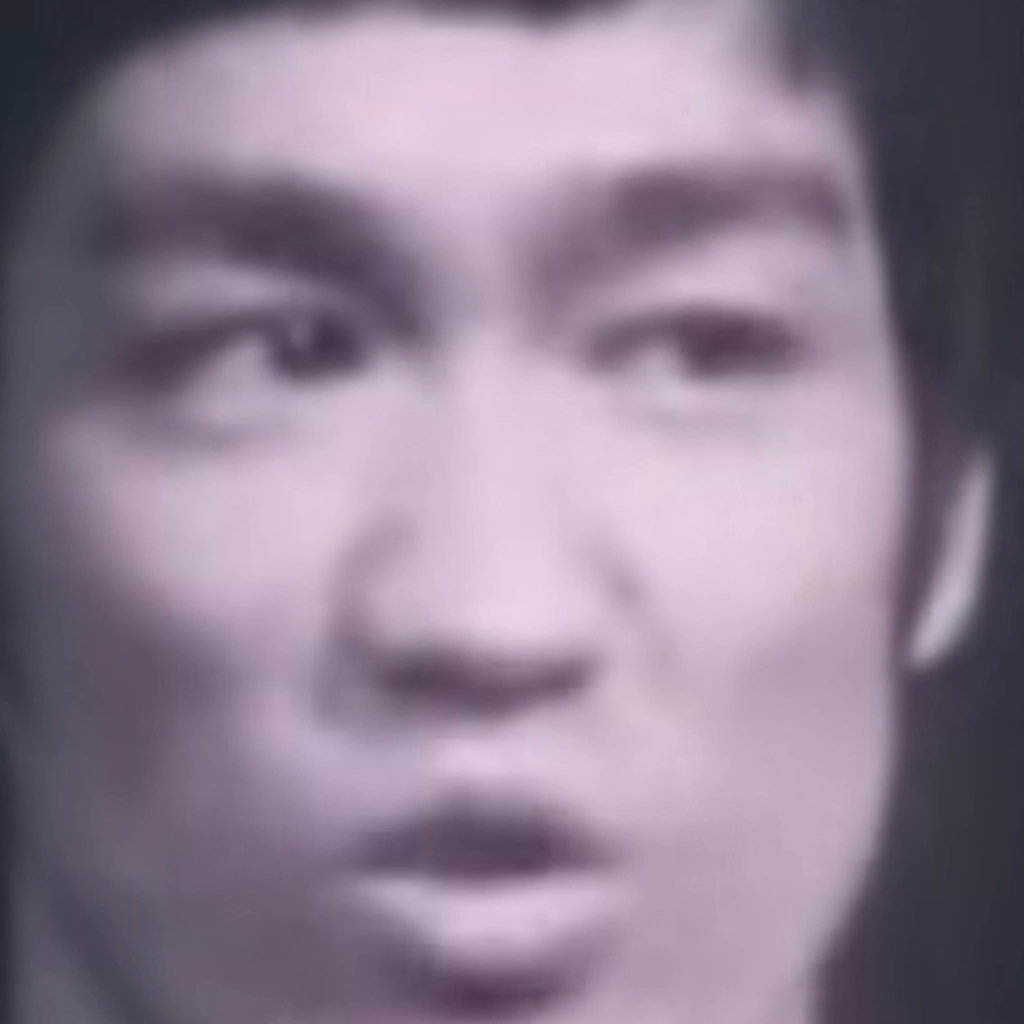
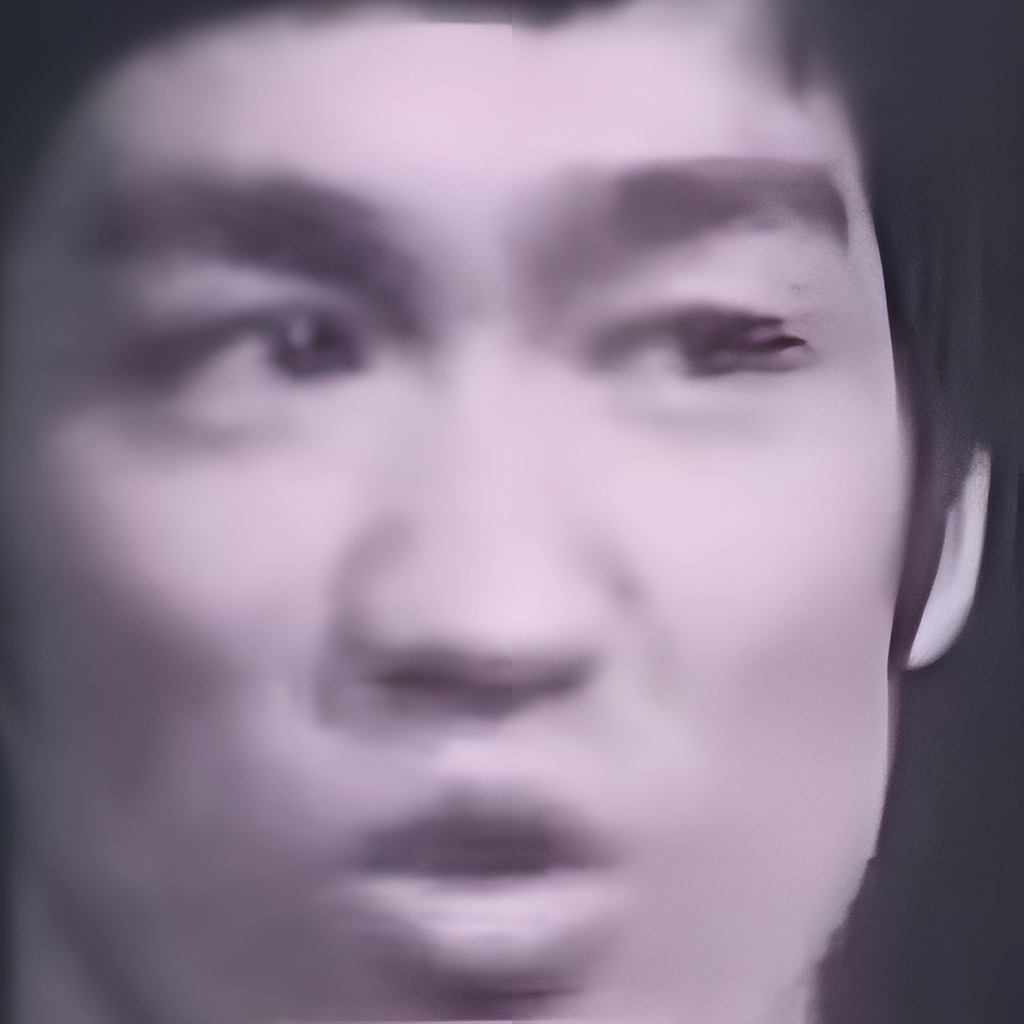
The enhanced contours are clearer, and some facial detail is reconstructed. Inspect identity, lettering and fine textures as well as sharpness. This pair contains no Upscayl output and cannot establish a quality winner between the products.
How to choose with a short, repeatable test
- Pick an image you actually need: a low-resolution portrait, a compressed screenshot or a noisy photo. Keep the original.
- Set the same target dimensions in both tools. Comparing a larger image against a smaller one can hide artifacts.
- Record the model and settings. Time from starting processing to a saved output, including loading and export.
- Inspect the whole picture and a few 100% crops. Check eyes, text, hair and straight lines.
- For Windows video work, test a short clip before a full export. Watch moving faces and edges in motion.
- Run a small batch only after the preview is satisfactory. Check file names, destination and the time to finish the entire queue.
If you mainly upscale still images and want an open-source desktop tool, download Upscayl. If you want a quick photo test, try Enhance online. For local photo and video batches, download ClapClip AI for Windows.
Frequently asked questions
Is Enhance a free Upscayl alternative?
Enhance's online photo tool is free and requires no login. It handles one uploaded photo at a time. Upscayl Desktop is a free, open-source local image upscaler. Choose based on whether you want a browser task or a desktop workflow, and check the Windows app's current license options separately.
Can both tools process images offline?
Both desktop options process on your own computer. Enhance's browser tool uploads the photo to a server. For files that must remain local, use a desktop application.
Which one is faster on a low-end GPU?
We have not run a matched product benchmark on a low-end GPU. The online option avoids local AI inference, while desktop performance depends on GPU compatibility, memory, model and output size. Try one representative file before a batch.
Can Upscayl replace a video enhancer?
The Upscayl Desktop workflow compared here is image upscaling. For direct video enhancement and a shared photo-and-video queue on Windows, evaluate ClapClip AI with a short clip first. Exporting and reconstructing video frames manually is a different workflow.